Linux
Command
Library
Basics
Tips
Commands
Video & Audio
Screenshots
Desktop-environment tools (
gnome-screenshot
,
spectacle
,
flameshot
) come with the desktop;
scrot
and
maim
work anywhere on X11,
grim
on Wayland.
$
flameshot
gui
$
gnome-screenshot
$
spectacle
$
scrot
$
maim
[fileName].png
$
grim
[fileName].png
$
import
-window root [fileName].png
Screen Recording
Record the screen with ffmpeg on X11 or
wf-recorder
on Wayland. For terminal sessions,
asciinema
records text instead of pixels.
$
ffmpeg
-f x11grab -i :0.0 recording.mp4
$
wf-recorder
-f recording.mp4
$
recordmydesktop
$
asciinema
rec session.cast
Webcam
Take a photo from the webcam.
$
fswebcam
[fileName].jpg
$
ffmpeg
-f v4l2 -i /dev/video0 -frames:v 1 [fileName].jpg
$
uvccapture
-d/dev/video0 -o[fileName].jpg
Playing Audio & Video
mpv
and
vlc
play virtually anything.
ffplay
is ffmpeg's bare-bones player;
aplay
and
play
handle simple sound files.
$
mpv
[file]
$
vlc
[file]
$
ffplay
[file]
$
aplay
sound.wav
$
play
sound.wav
Volume
alsamixer
and
pavucontrol
are the interactive mixers. From scripts,
pactl
controls the PulseAudio/PipeWire default output.
$
alsamixer
$
pavucontrol
$
pactl
set-sink-volume @DEFAULT_SINK@ +5%
$
pactl
set-sink-mute @DEFAULT_SINK@ toggle
$
amixer
set Master mute
$
amixer
set Master unmute
Recording Audio
Record from the default microphone.
$
arecord
-f cd [fileName].wav
$
ffmpeg
-f alsa -i default [fileName].wav
Speech & Beep
Make the computer talk, or play the classic PC speaker beep.
$
spd-say
"I am a robot"
$
espeak
"I am a robot"
$
beep
Inspect Media Files
Show codecs, resolution, duration, and bitrate.
$
ffprobe
[file]
$
mediainfo
[file]
Converting with ffmpeg
ffmpeg picks the output format from the file extension, so plain conversion needs no flags.
$
ffmpeg
-i input.avi output.mp4
$
ffmpeg
-i input.mp4 output.webm
Extract the audio track as MP3 (
-vn
drops the video,
-b:a
sets the audio bitrate;
-q:a 0
uses best variable quality instead).
$
ffmpeg
-i video.mp4 -vn -b:a 192k audio.mp3
$
ffmpeg
-i video.mp4 -vn -q:a 0 audio.mp3
Resize a video;
-1
keeps the aspect ratio.
$
ffmpeg
-i input.mp4 -vf scale=1280:-1 output.mp4
Cutting Video
-ss
sets the start,
-t
the duration.
-c copy
cuts without re-encoding: instant and lossless, but only accurate to the nearest keyframe.
$
ffmpeg
-ss 00:01:30 -i input.mp4 -t 00:00:20 -c copy clip.mp4
$
ffmpeg
-ss 00:01:30 -i input.mp4 -t 00:00:20 clip.mp4
Images & Video
Turn a numbered image sequence into a video and back, or make an animated GIF.
$
ffmpeg
-framerate 24 -i image%d.jpg video.mp4
$
ffmpeg
-i video.mp4 image%d.jpg
$
ffmpeg
-i video.mp4 -vf "fps=10,scale=480:-1" animation.gif
Convert images to the WebP format.
$
gif2webp
[inputFile] -o [outputFile]
$
img2webp
[inputFile] -o [outputFile]
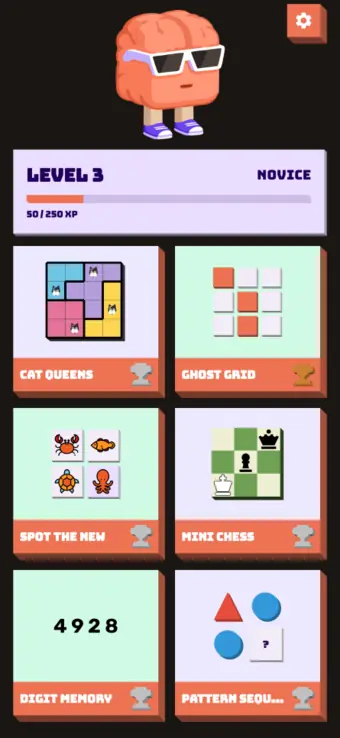
Braincup
Open source brain training for math, memory and focus
41 mini-games · Apache-2.0
No ads · No tracking
Play in browser
276 stars
From the maker of Linux Command Library
Copied to clipboard
Braincup
Open source brain training for math, memory and focus. 41 mini-games, from mental arithmetic to Sudoku, N-Back and Solo Chess.
Apache-2.0 licensed · No ads · No tracking · No account
From the maker of Linux Command Library
Play in your browser
276 stars